Documentation
Precise video looping for practice: loop specific part of video, repeat small video segment. Step-by-step guide for practice with video loops.
Getting Started
Import Video
Load an MP4 video file from your device. The app works completely offline.
Add Subtitles
Optionally import VTT subtitle files for language learning support.
Set Loop Points
Use A/B buttons to define loop segments with 0.01s precision.
Interface Overview
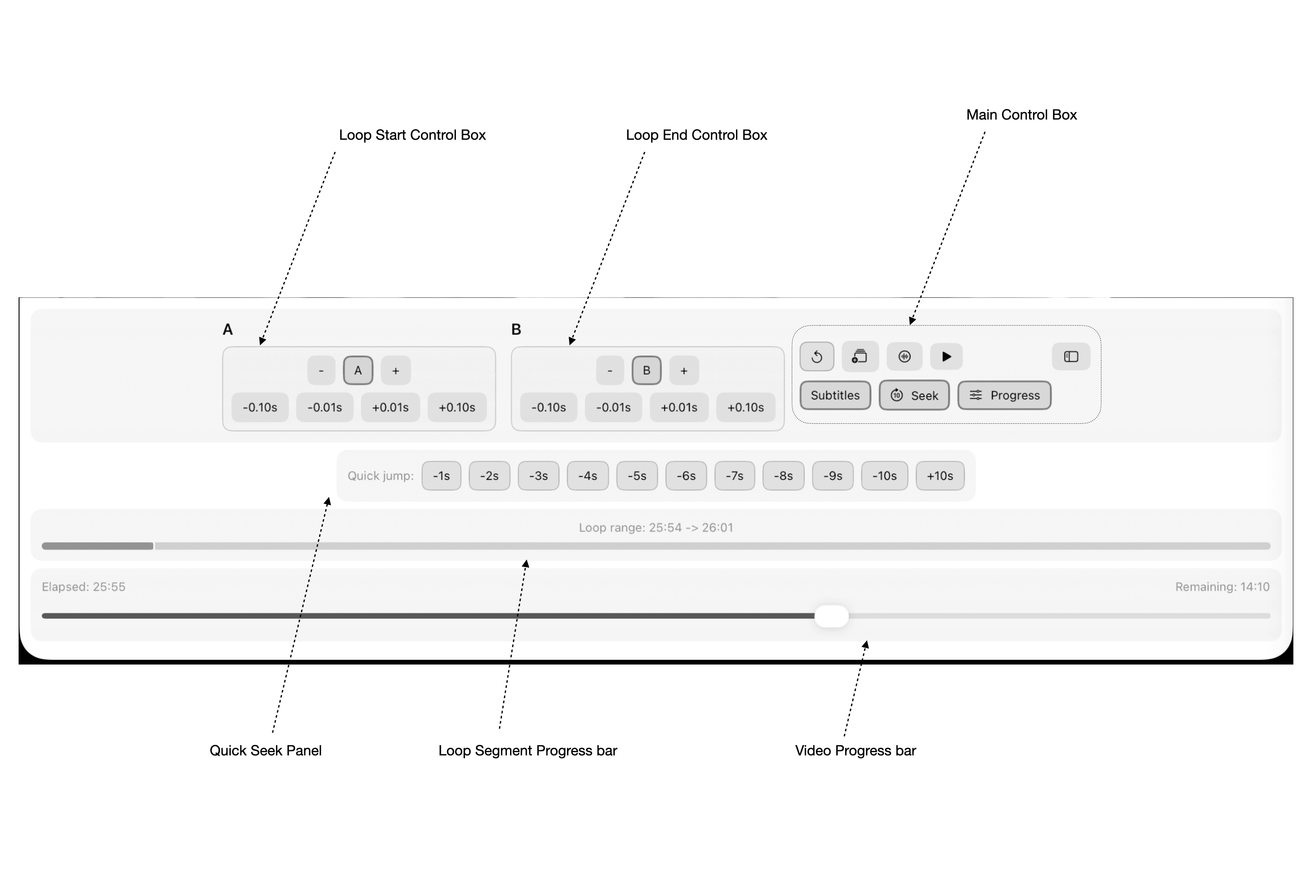
Main Components:
- • Loop Start Control Box (A)
- • Loop End Control Box (B)
- • Main Control Box
- • Quick Seek Panel
Progress Tracking:
- • Loop Segment Progress Bar
- • Video Progress Bar
- • Time Display (Elapsed/Remaining)
Loop Control Boxes
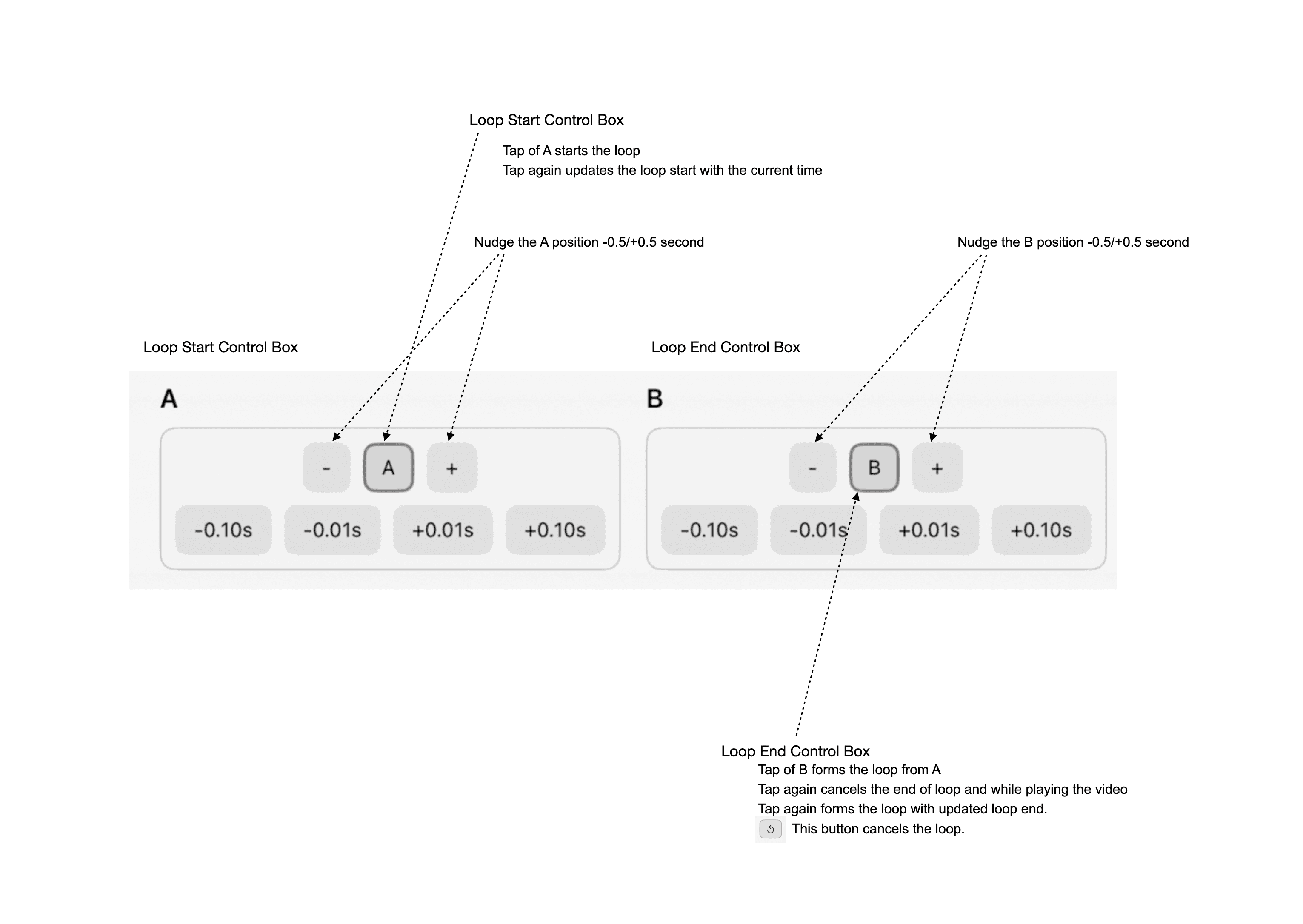
Setting Loop Points
Loop Start (A): Tap the A button to set the loop start point at the current time. Tap again to update the start position.
Loop End (B): Tap the B button to create a loop from point A. The loop will automatically begin playing. Tap again to cancel or update the loop end point.
Cancel Loop: Tap B again while playing to cancel the end of loop and continue playing the video. Tap once more to form a new loop with an updated end point.
Precision Adjustments
Fine-tune your loop points with three precision levels:
Quick adjustments for general positioning
Fine-tuning for precise control
Coarse adjustments for browsing
Use the nudge buttons (-/+) to adjust the A or B position with the selected precision level.
Main Control Box
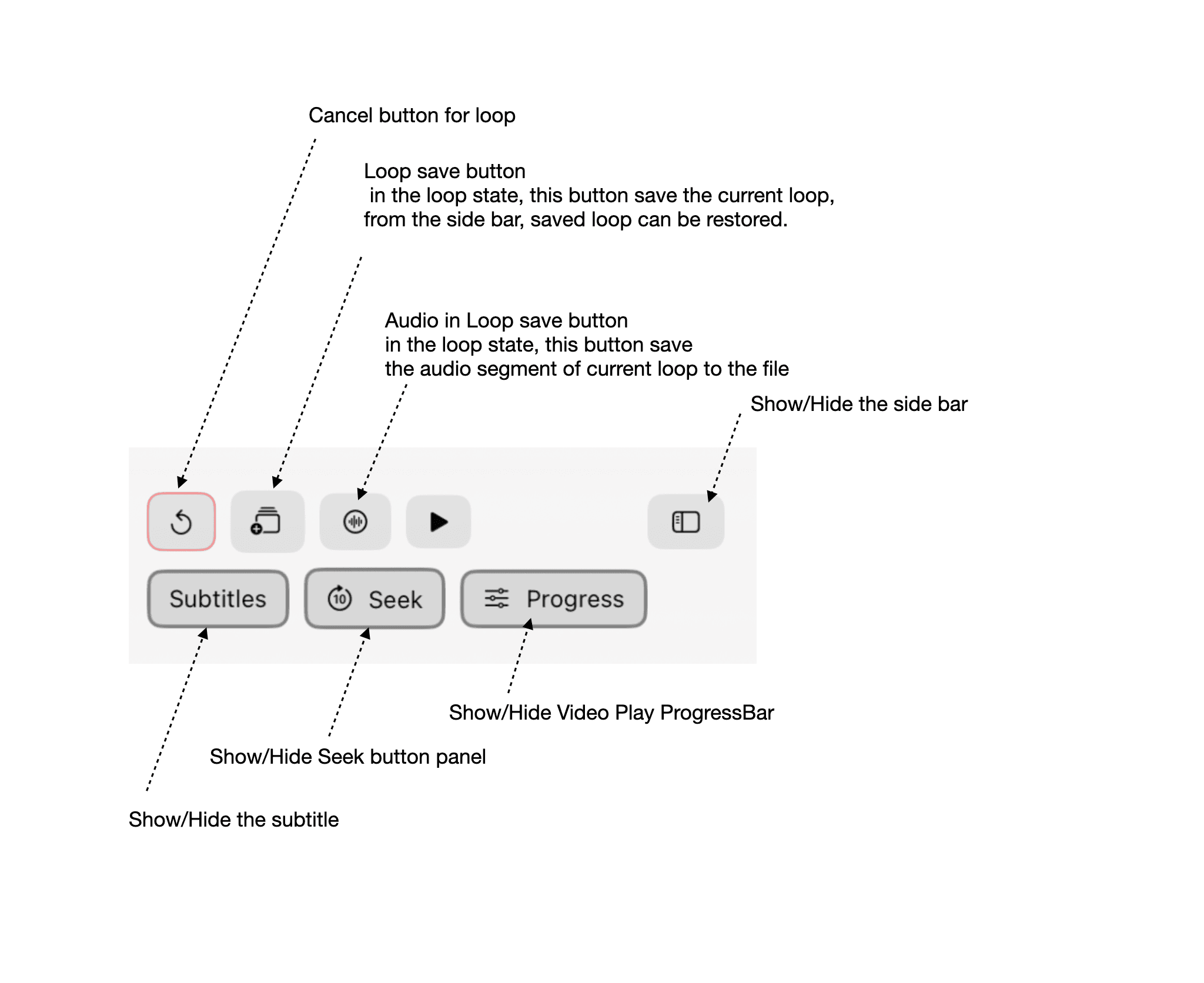
Control Buttons
Exit loop mode and return to normal playback
Save the current loop segment to the sidebar for later access
Extract and save the audio segment of the current loop to a file
Toggle the sidebar panel visibility
View Toggle Buttons
Show or hide the subtitle overlay on the video
Show or hide the quick seek button panel
Show or hide the video playback progress bar
Quick Seek Panel
The Quick Seek Panel provides instant navigation to specific points in your video. Buttons are arranged from -1s to -10s for backward seeking.
Usage:
- • Tap any button to jump backward by that number of seconds
- • Useful for quickly replaying difficult sections
- • Combine with loop controls for focused practice
Interactive Sidebar Panel
The sidebar panel helps you track your study progress and manage saved content.
Daily Study Status
View your daily practice time and progress metrics
Saved Loop Segments
Access your saved loops for quick review and practice
Recent Files
Quickly reopen recently used MP4 video files
Supported File Formats
Video Files
Subtitle Files
Tips for Language Learning
Start with Longer Loops
Begin with 10-15 second segments to understand context, then narrow down to specific phrases
Use Precision Adjustments
Fine-tune loop points to capture the exact moment a word or phrase begins and ends
Save Important Segments
Use the loop save feature to build a library of practice segments for later review
Export Audio for Practice
Extract audio segments to practice pronunciation while on the go